Showing posts with label Open Source. Show all posts

Thursday, October 16, 2008

Notepad++ : Free Source Code Editor

Notepad++ is a free source editor that supports several languages (C, C++, HTML, ASP, Java, Pascal, CSS and more) with the syntax highlighting and syntax folding, running in the MS Windows environment. It is written in C++ and uses pure Win32 API and is under the GPL Licence. It's based on Scintilla, which is a component for source code editing.

Notepad++ is portable and it supports tabs, syntax highlighting, drag and drop, macro recording, regular expression search and replace, and auto-completion. It allows users to edit 2 different documents at the same time, and even to edit the same document in 2 different views when you are in clone mode. It also gives the extra functionality to define a user's own language for the syntax folding and syntax highlighting.


Plugins are also supported by Notepad++. Some of the most used plugins are; Light Explorer that adds a small file browser pane, FTP Synchronize automatically sends updates to server with changes saved to a local copy, Quick Text which is a snippet management tool, and Secure Pad that adds encryption and decryption functionalities.

All of the explained and nonexplained features for Notepad++ are:
  • Auto-completion
  • Multi-Document
  • WYSIWYG
  • User Defined Syntax Highlighting
  • Bookmark
  • Brace and Indent guideline Highlighting
  • Multi-View
  • Syntax Highlighting and Syntax Folding
  • Macro recording and playback
  • Regular Expression Search/Replace
  • File Status Auto-detection
  • Zoom in and zoom out
  • Full Drag & Drop supported
  • Dynamic position of Views
  • Multi-Language environment

Download Link:
Check out the latest version and download Notepad++.

Saturday, October 11, 2008

OpenOffice.org 3.0.0 Final

OpenOffice.org OpenOffice.org 3.0.0 is now available for download. Open Office is the best free and open source alternative to the Microsoft Office application suite and contains many drop in replacement programs to Microsoft Office’s popular Word, Excel and PowerPoint programs.

OpenOffice.org 3.0.0 is an open source office productivity software suite includes a Word Processor (Writer), a Spread Sheet (Calc), a Presentation program (Impress), a Database program, (Base) a Graphics Editor program (Draw) and a tool for creating and editing mathematical formulas with a user interface and feature set similar to other office suites.

It is available in many languages (over 45 languages) and supports multiple platforms such as Windows, Linux, MacOS X and Solaris. It supports both Microsoft Office file formats (.doc, .xls, .ppt, etc.) and the latest Microsoft Office 2007/2008 file formats (.docx, .xlsx, .pptx, etc.). Open Office also allows users to save working files to PDF format.

It can be downloaded and used completely free of charge for any purpose. Open Office and its series of releases have been great and a great way to save money. Written in C++ and with documented APIs licensed under the LGPL and SISSL Open Source licenses, OpenOffice.org allows any knowledgeable developer to benefit from the source. And, because the file format for OpenOffice.org is XML, interoperability is easy, making future development and adoption more certain.

Lets take a look at Open Office suite's productivity applications:

OpenOffice Writer:
 
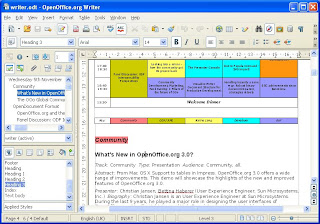
Writer
Writer has everything you would expect from a modern, fully equipped word processor or desktop publisher: powerful features like AutoCorrect, AutoComplete, AutoFormat, Styles and Formatting, Text Frames and Linking, Tables of Contents, Indexing, Bibliographical References, Illustrations, Tables, and other objects.
Writer is simple enough for a quick memo, powerful and stable enough to create complete books with lots of graphics, headings etc. 

OpenOffice Calc:
 
Calc
Calc is the spreadsheet you've always wanted. Newcomers find it intuitive and easy to learn; professional data miners and number crunchers will appreciate the comprehensive range of powerful features including Advanced DataPilot technology, Natural language formulas, an Intelligent Sum Button, a comprehensive range of advanced spreadsheet functions, Styles and Formatting, and a Scenario Manager for "what ifs". 

OpenOffice Impress:

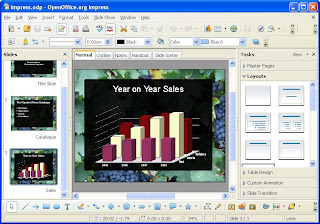
Impress
Impress is a truly outstanding tool for creating effective multimedia presentations. Your presentations will stand out with 2D and 3D clip art, fontworks, special effects, animation, and high-impact drawing tools. A multi-pane view puts all the tools at your fingertips, and you can 'park' your most commonly used drawing tools around your screen ready for single-click access. Share your work in many ways: not only pdf, but also html and Flash.

OpenOffice Draw:

Draw
Draw anything from a quick sketch to a complex plan. Draw gives you the tools to communicate with graphics and diagrams. Manipulate objects, rotate in two or three dimensions; use sophisticated rendering to create photorealistic images. Smart connectors make short work of flowcharts, organisation charts, network diagrams, etc. Styles - a common OpenOffice.org feature - help you control your work easily and precisely in Draw.

OpenOffice Base:

Base
 Base enables you to manipulate database data seamlessly within OpenOffice.org 3. Create and modify tables, forms, queries, and reports, either using your own database or Base's own built-in HSQL database engine. Base offers a choice of using Wizards, Design Views, or SQL Views for beginners, intermediate, and advanced users.

Thursday, October 9, 2008

Google Chrome : A fresh take on the browser

Google Chrome
Google released the first beta version of Google Chrome Web browser on 2 September 2008 in 43 languages. Only the Microsoft Windows ( XP or later ) version  has been released. Mac and Linux releases will soon follow.

Google Chrome is a free and open-source web browser and is based on WebKit which is an open-source web browser engine presently used by Safari. So what renders properly in Safari should render properly in Chrome. The other power under Chrome is V8 JavaScript engine which is developed by Google. Tests by Google showed that V8 was about twice as fast as Firefox 3 and the Safari 4 beta.


The most interesting feature is the support of multiple processes, where each tab will operate in its own memory space with its own virtual machine for code execution. Thereby you can go into the Windows Task Manager and shut down one of them if it’s locked up. It also means that a bad process in one tab won’t kill your whole browser session. Also plugins are removed from the rendering process and placed in a separate process. The other features are listed below;

1. Task manager

Chrome has its own Task Manager that shows you how much memory and CPU usage each tab and plug-in is using. You can open it by clicking Shift-Esc from within Chrome. You can get more details by clicking the “Stats for nerds” link on the Task Manager and it will open a page with a full breakdown of memory and CPU usage for each process within the browser. 

2. One box for search, address, and history

Instead of having separate input boxes for the search bar and the address bar, Google has united the two in Chrome. Google also added history to the equation. So you can type something like “techrepublic” in the box and it will suggest the techrepublic.com home page as well as other recently visited TechRepublic pages. This is similar to the new “Awesome bar” in Firefox 3 but Google’s “One box” includes search as well. If you type “techrepublic” in the box and hit return then it will simply open it in Google.com (or your default search engine).

3. Upgraded tabs

The Chrome development team views tabs as one of the best new innovations to Web browsing in recent years and so they wanted to expand the functionality of tabs since users . In Chrome you can drag a tab into its own window, and drag it back to the main window. This is called “Dynamic Tabs.” Also, by default, the “New Tab” page in Chrome features a page that shows thumbnails of your most visited Web sites, a list of your recent bookmarks, and a search box that allows you to search your history.

First class tabs. Unlike Firefox or IE7, Chrome puts the tabs on top of the browser window above the address bar that shows the page URL. In fact some apps may not need an address bar. Tim Burners Lee always envisioned the URL as something that would be hidden from the user, so I think we’ll see more of that. As part of this behavior, you’ll be able to drag a tab out of one window and into another. I’ve been looking forward to that feature for a long time, as I tend to open up so many tabs I can’t read their titles any more. 

4. New support for Web applications

Naturally, Google believes in Web-based applications and is invested in a future that includes applications running from the cloud and running in a Web browser. Current Web applications include Google Docs, Salesforce.com, and Outlook Web Access. Chrome makes it easier to make those applications feel more like desktop apps.

From the start page of your Web application you simply click the Chrome controls icon and then click “Create applications shortcuts” and you can create Desktop, Start Menu, and/or Quick Launch icons. Then when you launch those apps they open in a streamlined window without the address bar and separate from the Chrome Web browser window. If the apps integrate with Google Gears then you can even open them when you’re offline.

5. Incognito browsing

Chrome includes an Incognito mode in which users can go to sites but nothing from that session — history, form fields, or cookies — will be saved in Chrome. This can be useful on shared computers and when viewing sensitive data through the Web browser. The beta version of Internet Explorer 8 includes a similar feature.
Related Articles